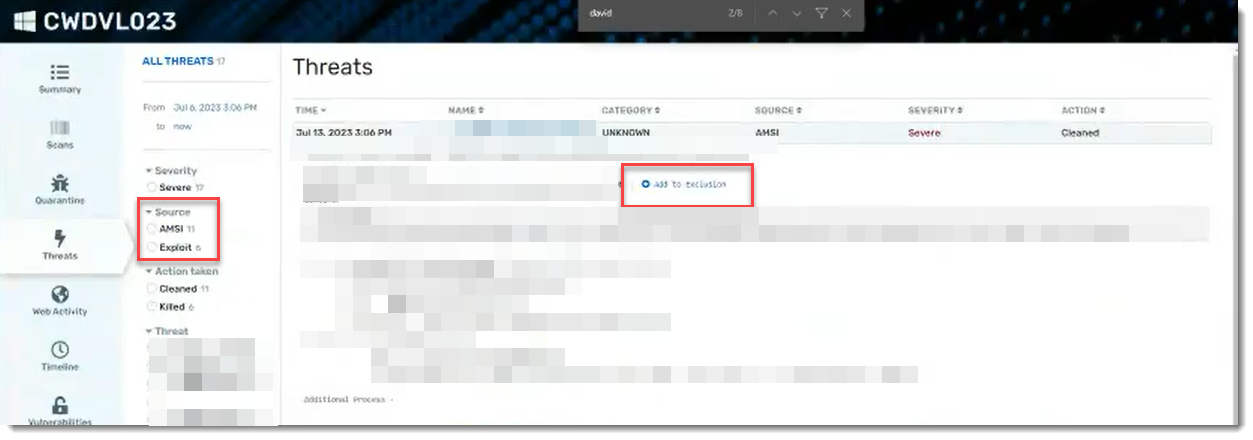
AMSI, which stands for Antimalware Scan Interface, is a Microsoft Windows component that works with VIPRE to analyze active, potentially malicious script code that is running to help us detect, identify, and block threats. Scripts can now be excluded from blocking by adding a hash of the script contents to the Hash exclusions.
AMSI is enabled with Block and disinfect selected by default.
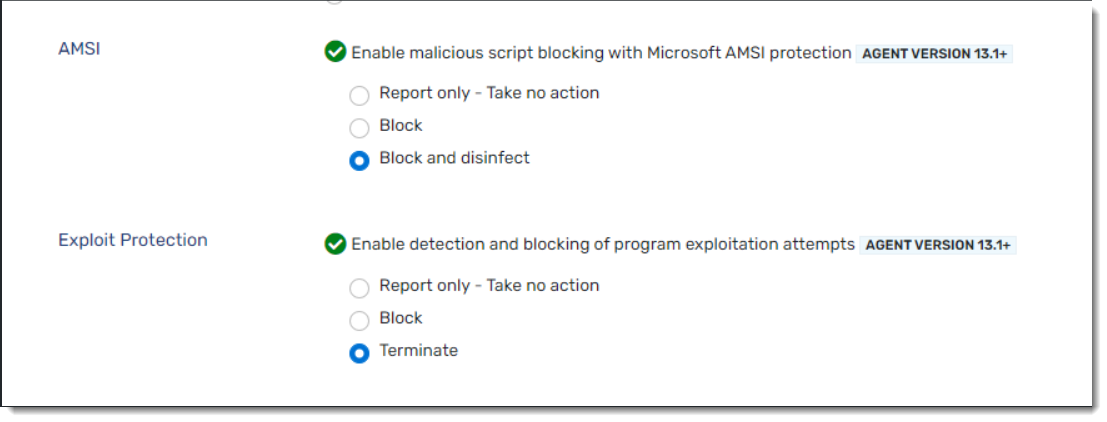
To enable/disable AMSI:
- Within your VIPRE Cloud web console, under Manage, select Policies
- Choose the desired policy, then click Active Protection and scroll down until you see AMSI
- Add a checkmark next to Enable malicious script blocking with Microsoft AMSI protection and select one of the following actions:
- Allow - detects and reports the events but does not block the action
- Block - detects and reports the events and blocks the script
- Block and disinfect - detects and reports the events, blocks and removes the script
To view AMSI detection events:
- Within the VIPRE Cloud web console, under Monitor, select Reports
- Click Threat Summary Report
- Select and click on the name of a threat in the table at the bottom of the page
- Click the device name in the Detections table
- In the light blue side-navigation bar, select Threats
- Filter to choose AMSI then click on a threat to show the details
- If you want to add an exclusion for a particular threat, click the Add to Exclusion link